


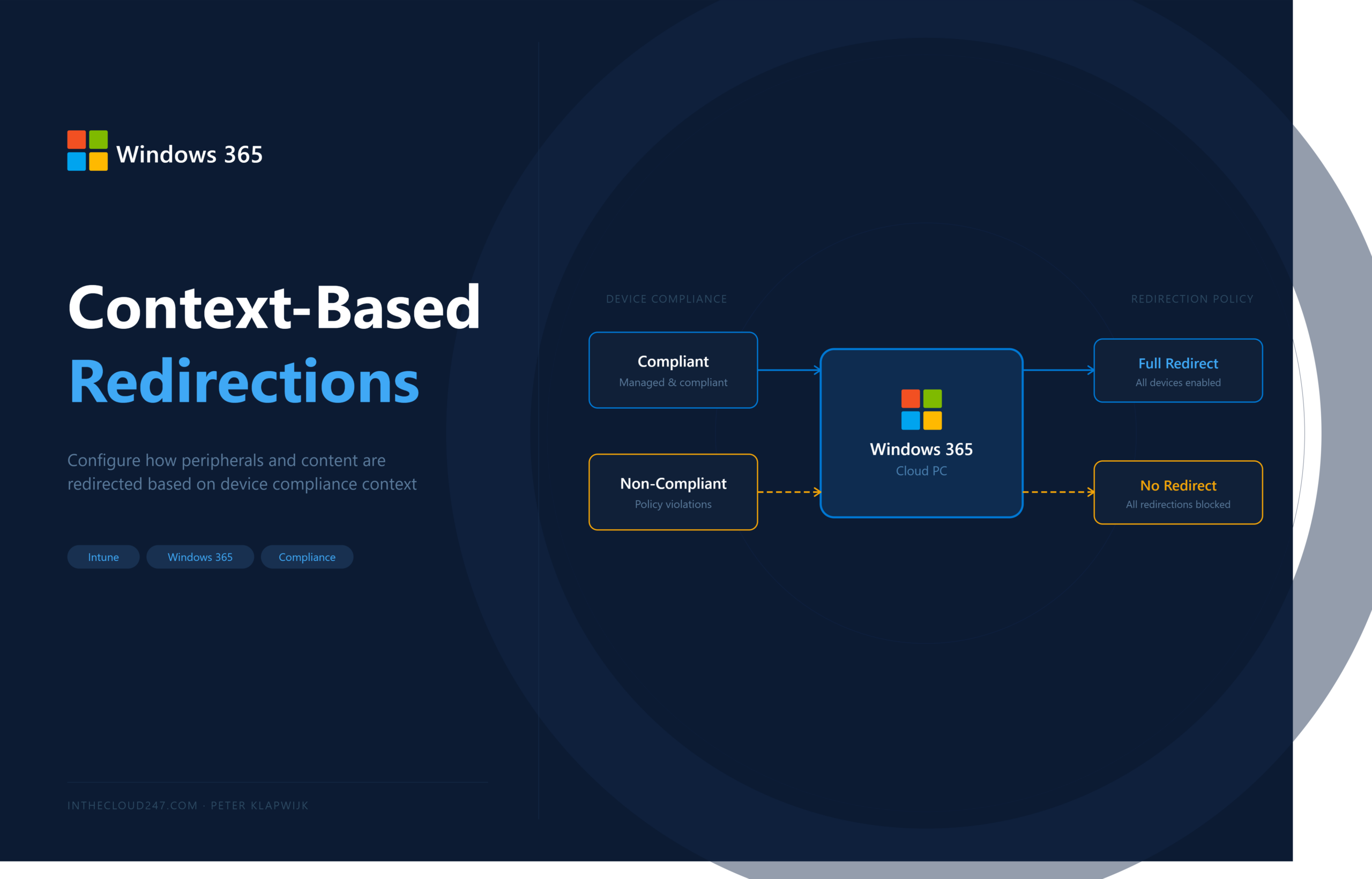
Microsoft recently announced the public preview of context-based redirections for Windows 365 Cloud PCs and AVD. This new feature is a welcome addition to how we control redirections of things like clipboard copy/ paste from the local device to the Cloud PC. Until now redirections were configured as blocked or allowed. It was just black or white. We didn’t have an option to allow redirections from a compliant device and block redirections from an unmanaged or not compliant device. With the new context-based redirections this is changed!
Context-based redirection lets us dynamically control whether redirection is allowed in a remote session based on the trust level of the connecting device, using authentication context and Entra Conditional Access policies.
We can apply authentication context to control the redirection of clipboard, drive, printer and USB.
This means that we can setup a configuration that on a managed, compliant device the user gets full clipboard, drive, printer and USB redirection, while a BYOD or non-compliant device gets those redirections blocked, automatically.
A very welcome addition on how we can control these redirections!
Let us briefly walk through the steps to set this all up.
Configure Redirections
By default redirection of clipboard, drive, printer and USB is blocked, even without configuring this yourself with a policy. Make sure these redirections are configured as Not configured or Enabled as the most restrictive policy wins, as described on the Microsoft Docs.
In my example I want to allow redirection of clipboard and printers from a compliant device, but want these blocked from unmanaged devices. Therefore I need to deploy an Intune Setting Catalog profile in which I configure the redirection of clipboard and printers to make sure these are allowed.
For this, sign in to the Intune Admin center.
Navigate to Devices, Windows, Configuration.
Press Create, New policy.
As platform select Windows 10 and later.
As Profile type select Settings Catalog and press Create.
Provide a Name and description (optional).
Add the following two settings to the profile:
Do not allow client printer redirection
Do not allow Clipboard redirection
Set them both to Disabled.
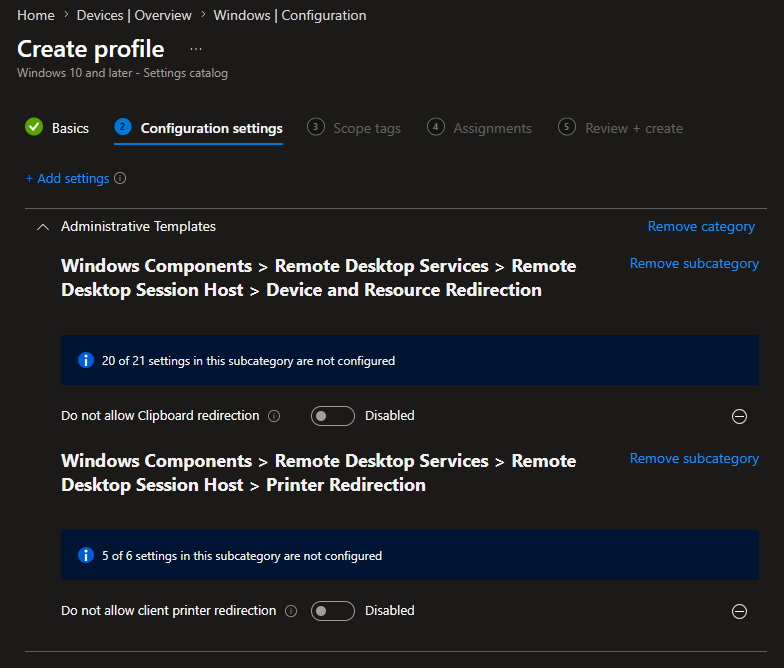
Finish configuring the Settings Catalog profile and make sure your (test) CPC are targeted by this policy.
Configure Authentication context and conditional Access policy
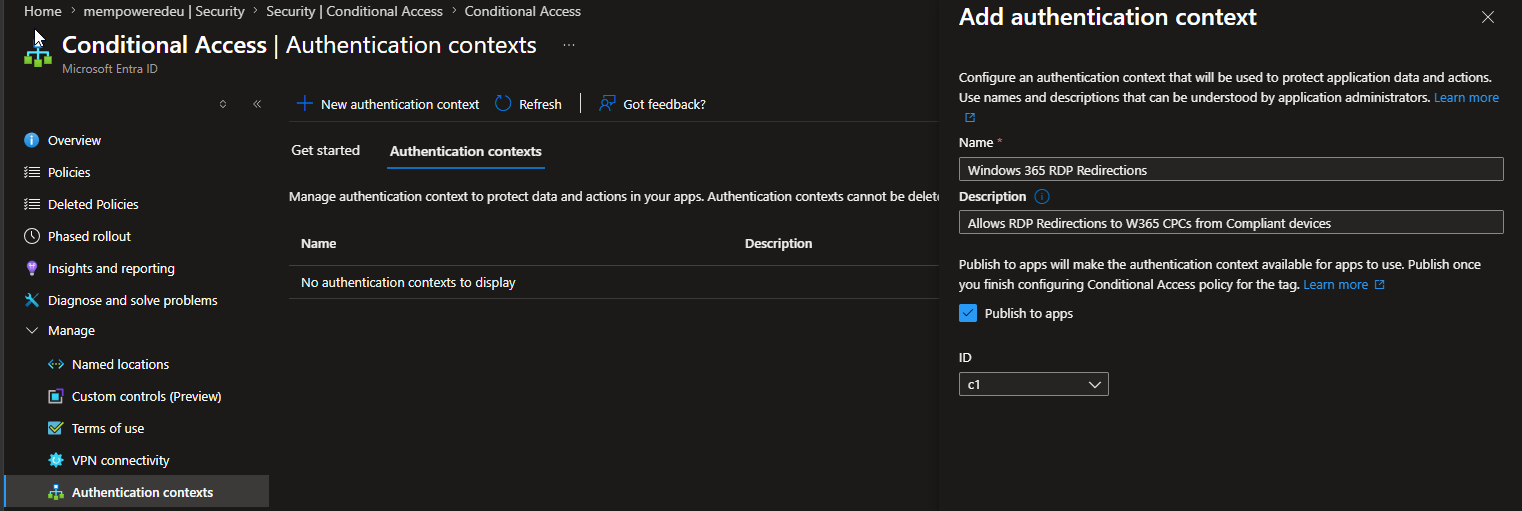
The next step we need to take is create a new Authentication context. An authentication context is a sort of tag, to connect the Conditional Access policy and the Cloud PC Settings policy to each other.
A Authentication context can be created from the Entra admin center.
Navigate to Entra ID, Conditional Access. Under Manage we find Authentication Contexts.
Press New Authentication context.
Enter a name and description (optional) for the new authentication context.
Make sure a checkmark is set next to Publish to Apps and select an ID.
Press Save.
The next step is to configure a Conditional Access policy to enforce the context based redirection.
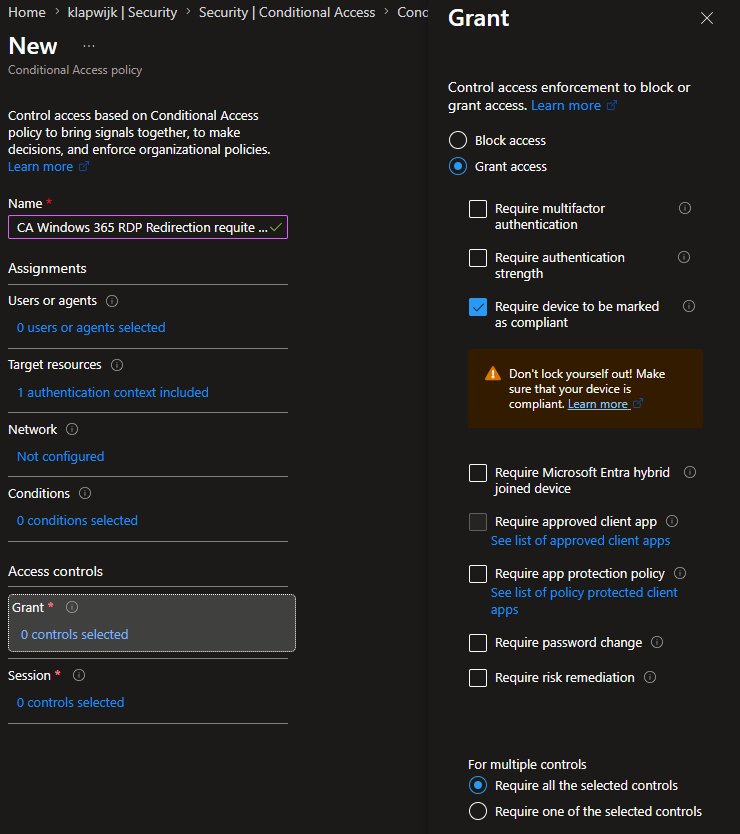
In the CA policy we select the previously created authentication context and we require a compliant device.
In the Entra admin center, still in the Conditional Acces section, navigate to Policies.
Press New policy.
Provide a name for the new Conditional Access policy.
In User or agents, select the user group you want the CA policy to apply to.
In Target Resources select Authentication context under Select what this policy applies to.
Set a checkmark next to the previously created authentication context.
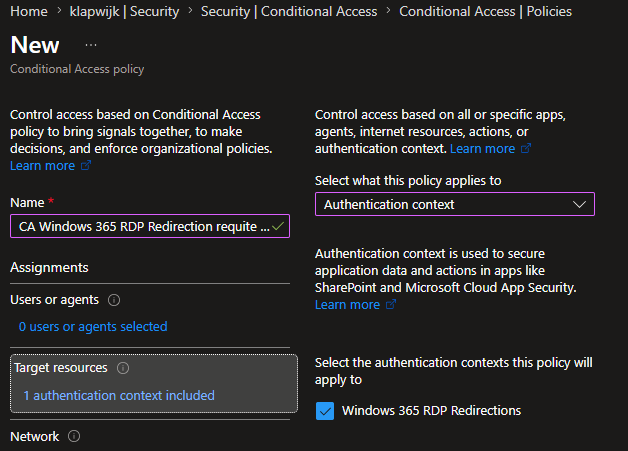
In Grant, select Require device to be marked a compliant.
Make sure the toggle Enable policy is set to On.
Click Create.
Configure Cloud PC Settings
The last step in our configuration is to create a Windows 365 Remote Connection Experience policy, which is a new Cloud PC Settings policy.
In this policy we configure the device redirections to make use of the authentication context.
In the Intune admin center navigate to Devices, Cloud PC Settings, under Manage Windows 365 Cloud PCs.
Press Create, Remote Connection Experience.
Enter a name and description (optional) for the new policy.
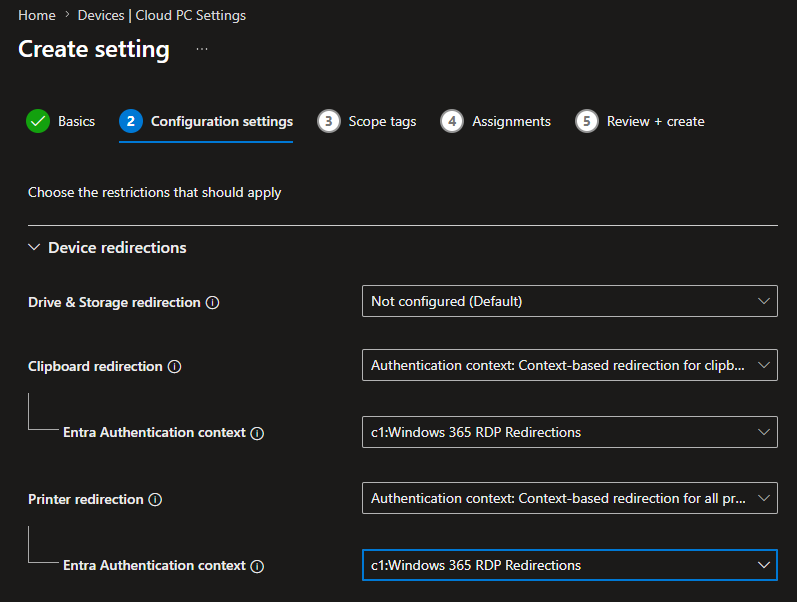
Under Device redirections we select Authentication context: Context-based redirection for Clipboard and Printer redirection. And for both settings we select the previously created authentication context.
Assign the policy to a device group that contains the Windows 365 Cloud PCs.
The end user experience
The end user experience is that the clipboard and printer redirections are blocked when the user connects to the Cloud PC from an none compliant (unmanaged) device.
But when the same user connects to the CPC from a compliant device, these redirections are allowed.
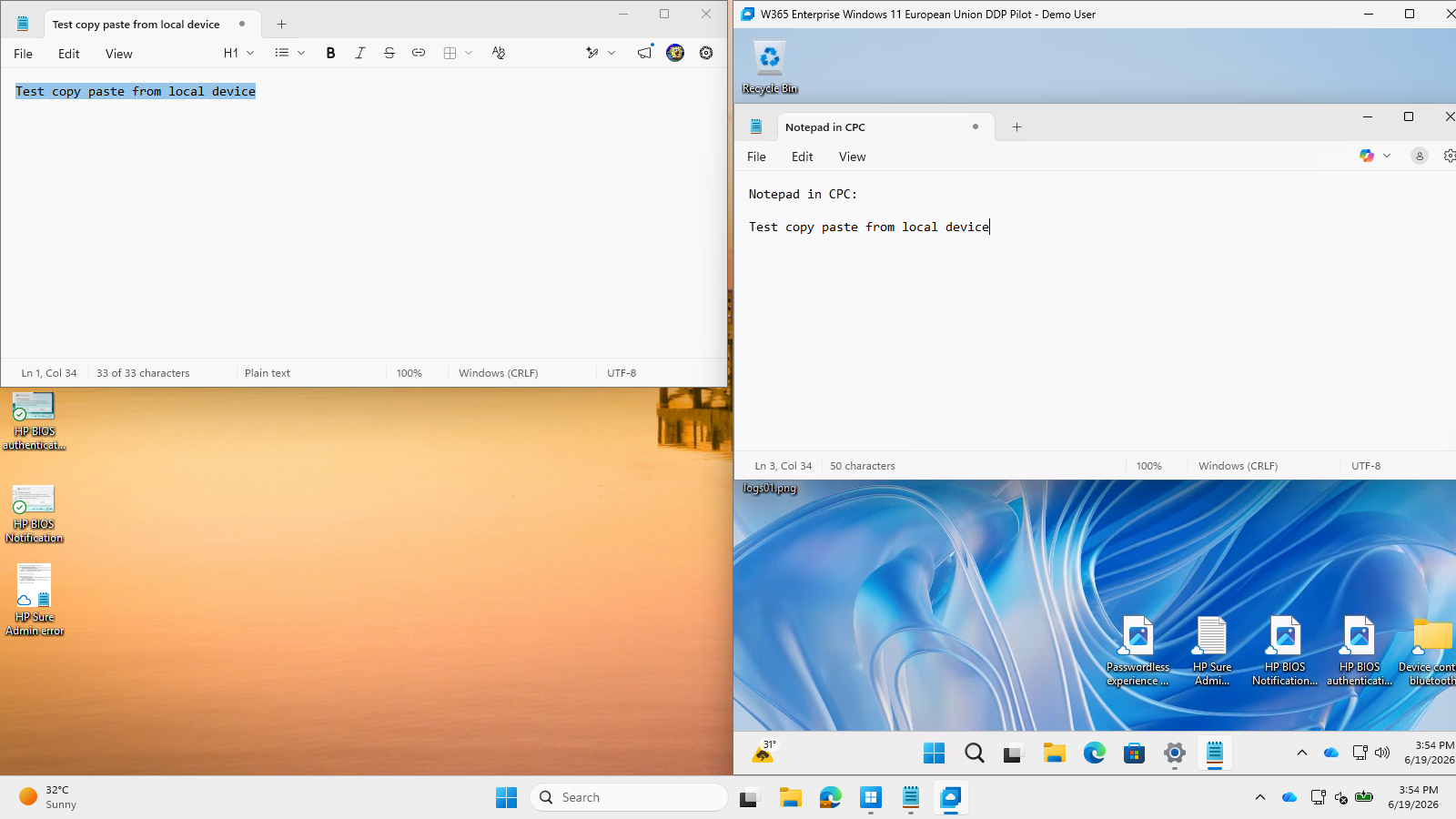
On a picture it is hard to show the clipboard functionality does work, but I’m able to copy the data from my compliant device (on the left) to my CPC (on the right).
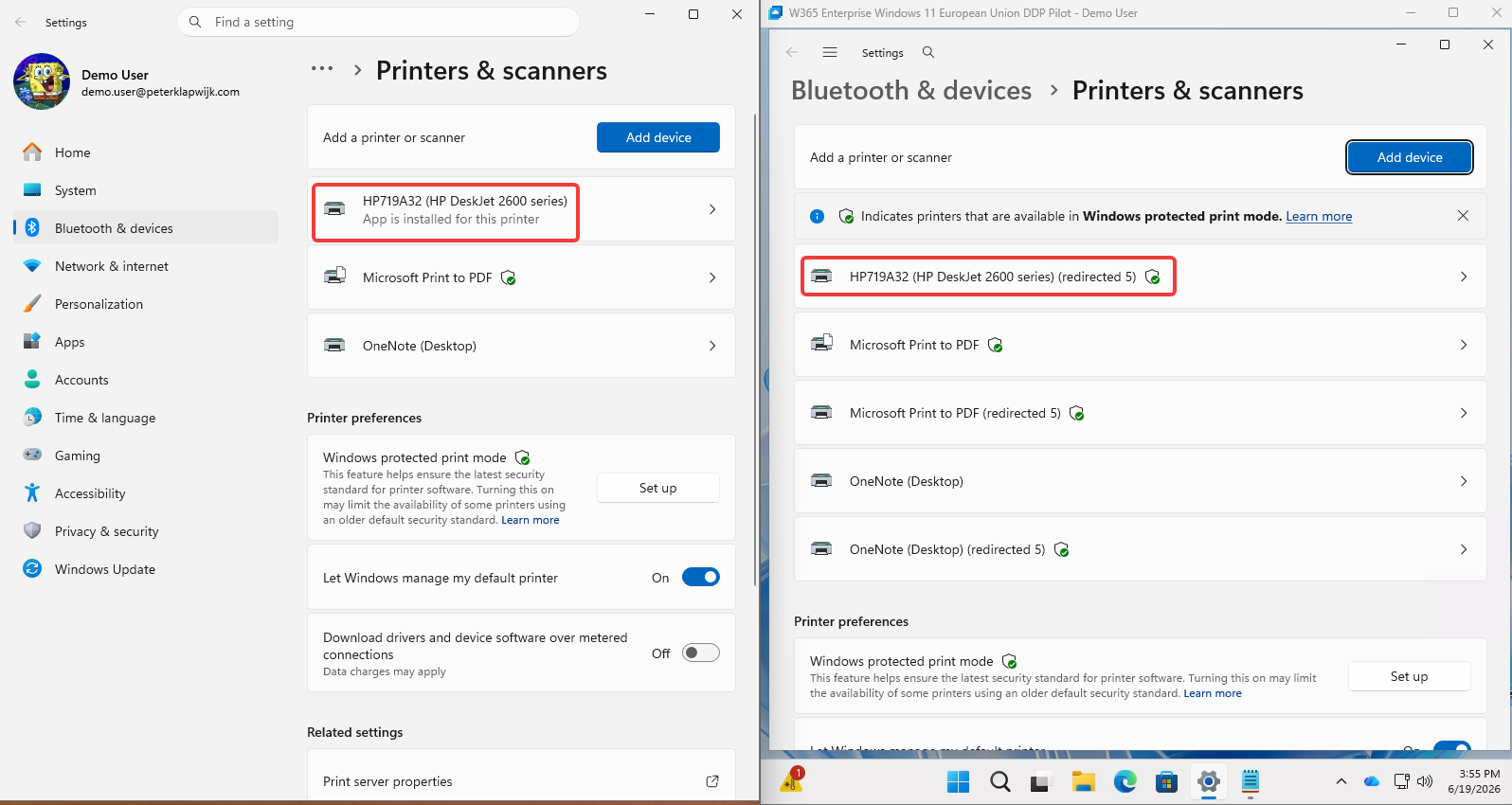
A better example is printer redirection.
On the left we see the original printer, connected to the compliant device.
On the right we see the same printer, redirected to the Cloud PC.
That’s it for this blog post.
This is a welcome addition to the option we had for device redirection. If Microsoft provides us some more information about the status of the context redirection this feature will be even better. Because the policy does work fine, but from an administrative perspective we are in the dark if the policy is active.
Happy testing!
