


I wrote two blog posts in the past about configuring the time zone on Windows devices with Microsoft Intune. I wrote a long time ago how to use a custom configuration policy to configure a time zone. And I also wrote a PowerShell script that configures the time zone automatically.
But we also have a third option to configure Windows to automatically configure the time zone based on your location, so the time zone is always up to date based on where you connect your device to the internet. Besides that in the meantime some things have changed so let’s have a look at all three options we have and discuss what’s the best option for which use case.
Time zone management with a Microsoft Intune policy
The easiest way to configure the time zone is using a Microsoft Intune policy. I wrote in the past how that can be done using a custom policy, but that was about 5 years ago, so in the meantime we can use a Settings Catalog policy.
This is as easy as looking up the needed time zone on your own device or in the list on Microsoft Learn.
And add the time zone to the Settings Catalog policy.
The Configure Time Zone setting is found under the Time Language Settings section.

This option is very easy to setup and a benefit is that the end-user can still change the the time-zone.
But there are also some downsides to this option. The biggest downside is for admins managing devices in multiple time zones. We need need to create a policy per time zone where our devices are enrolled.
We can overcome that by configuring Windows to automatically update the time zone, based on the location, so let’s also have a look at that option.
Configure Windows to automatically update the time zone based on the location
We can configure Windows so that it updates the time zone automatically when a change of location is detected.
We can also configure this with Microsoft Intune, but the solution consists out of two parts.
Windows needs to be allowed to use the location of the device. We can configure this partly with a Settings Catalog policy, but also need to configure a registry key.
Another registry setting also needs to be set, to configure Windows to automatically update the time zone. This is also not possible with a Intune setting.
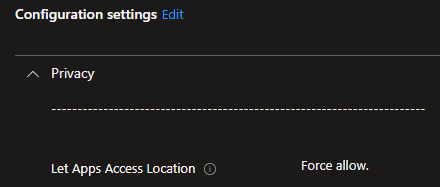
We need to create a Settings Catalog policy. In the Privacy section we find the setting Let Apps Access Location. Set this setting to Force allow.
And as written we need to configure two registry keys. This can be easily done using a PowerShell script.
We can wrap the script as WIN32 package and deploy it as required application to our device, or we can deploy it as platform script.
An example script can be found on my GitHub.
The script sets the registry key Start under HKLM:\SYSTEM\CurrentControlSet\Services\tzautoupdate to a value of 2. This allows Windows to automatically update the time zone.
And the script sets the key Value under HKLM:\SOFTWARE\Microsoft\Windows\CurrentVersion\CapabilityAccessManager\ConsentStore\location to Allow. This allows location access for the time zone detection.

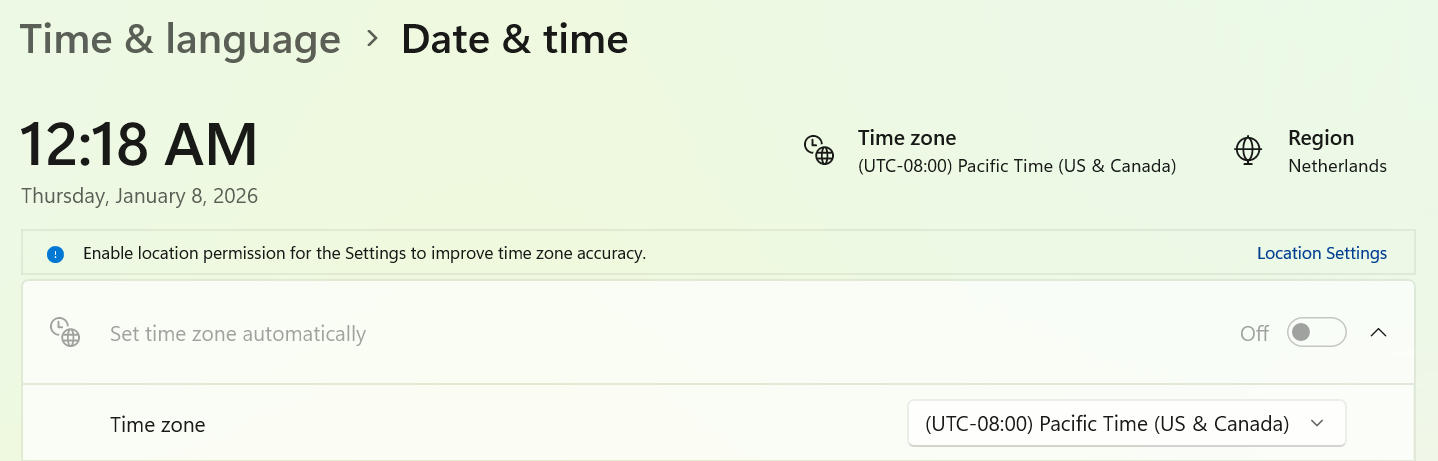
If we have a look at the user experience for this solution, we see that Set time zone automatically is turned off and we also see a message about the location permissions that need to be enabled.
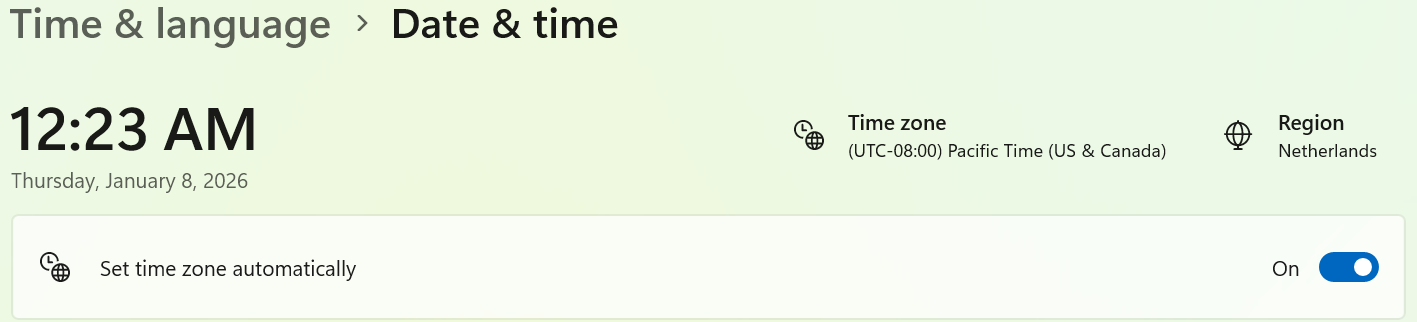
As soon as the policy is applied, that location message isn’t shown anymore and the auto time zone setting is switched on. But you might notice the time zone isn’t changed immediately.
But the time zone is changed after a reboot.
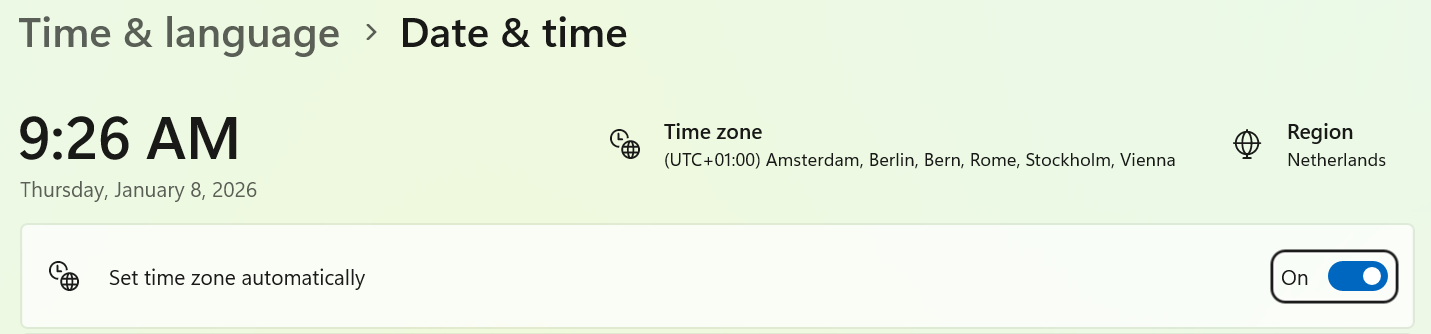
The benefit of this solution is that we only need to manage the script and one Intune policy, even if we manage devices in multiple countries, and the time zone is automatically configured correctly based on the device location.
But the downside for the end-user is that they can’t change the time zone themselves. Turning off that time zone setting needs administrator permissions.
Another option is to configure the time zone only once based on the location of the device and don’t configure Windows to automatically update the time zone on every changed time zone detection.
Automatically configure the time zone once with PowerShell
We can configure the time zone once during Windows Autopilot enrolment while still allowing the end user to change the time zone to the time zone they want.
For myself that’s the most nice solution and therefor I wrote a script in the past and shared that in a post. The script retrieves the device location based on the IP address and than selects the time zone using Azure Maps. I implemented that successfully on 20k devices in several countries, but the script seems to not work fine in countries with multiple time zones like the US which was not part of my deployment. The script makes use of Azure Maps, but Azure Maps returns multiple results in a large country with multiple time zones.
But luckily my fellow MVP Florian Salzmann faced this issue (and not me 😉 ) and he create a renewed script which handles the location better in countries with multiple time zones. He shared his solution in this blog post, so please read his post when you are interested in using this options to handle time zone management.
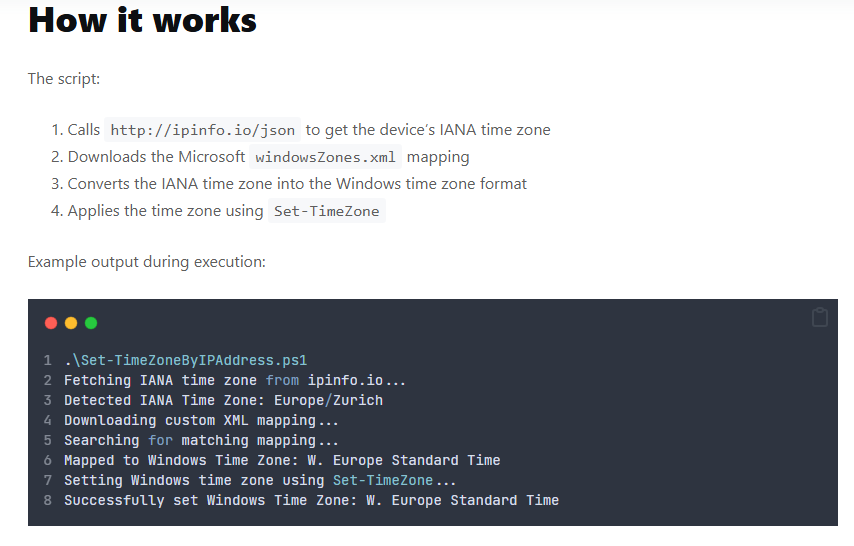
The benefit of this script is that we only need to configure one script for all our devices and the user is still able to change the location themselves. A downside could be that the time zone isn’t automatically changed when a change of location is detected.
To wrap things up. We have three different options to manage the time zone on our Windows devices using Microsoft Intune. All come with pros and cons. Although I find the latest option with the PowerShell script deployed during Autopilot enrollment the most user friendly solution, as it configures the time zone once and allows the user to change it to their needs.
But based on the use case you have, you can use the solution that fits your needs.
Thanks for reading and leave a comment with your question or thoughts about the post.
