


Today, we’re going to have a look at an approach in converting Microsoft 365 Apps (at most people still know as the Office 365 suite) from 32-bit to 64-bit with Microsoft Intune.
As an admin we can streamline the migration from the M365 Apps x32 installation to x64 using the Office Deployment Toolkit as described on Microsoft Learn. This involves creating an XML file that contains the MigrateArch attribute set to True.
MigrateArch ensures a seamless migration, maintaining all previous deployment settings, including update paths and installed languages.
This sounds like a migration without user impact, but note that the 32-bit version will be uninstalled and then the 64-bit version will be installed. This means for the end-user that all applications part of the Office suite need to be closed during this process to allow the uninstallation of the applications. So, there is some user impact when converting the Office suite on all existing devices. This makes it necessary to thoroughly plan the deployment of the 64-bits version to existing devices.
Another thing to keep in account when planning the deployment of the 64-bits version as replacement of the 32-bits version is that you want to install the 64-bits on every new device as soon as the decision is taken the 64-bits will be the default version in your organization from a certain date.
The challenge in this is that you, as IT admin, most likely assigned the 32-bits Office version to all devices or a group that at least contains a lot of your existing devices. Simply assigning the same group to the 64-bits version of the application would force the installation of the application to all the existing devices, closing the Office suite application in the middle of the business day. Your users might not be very happy with that approach.
So, let’s have a look at a approach that we could take to deploy the 64-bits version of Office to our new and existing devices without too much user impact.
Application deployment approach with Microsoft Intune
Let’s start with the deployment of Office 64-bits to our new devices.
We have different options with Microsoft Intune to deploy Microsoft 365 Apps. We have the built-in option, to just simply select the version, update channel etc. and deploy the application (shows as type Microsoft 365 Apps (Windows 10 and later) in Intune).
We also have the option to use the Office Deployment Tool and create a package with the setup.exe and a configuration XML ourselves. From these files we can create a WIN32 package and have the installation start using a PowerShell script.
Using a WIN32 package gives us some benefits, like using an Additional requirement rule. When using a PowerShell as additional rule, we can determine if the installation is running during Windows Autopilot enrollment or not. When using this approach, we can assign a WIN32 package for Office to an existing group of devices, without the application being forcefully installed on our existing devices, but only to our newly enrolled devices.
Such an ‘ESP detection’ script is created by fellow MVP Jannik Reinhard and shared on his GitHub repo.
I added some error handling to that script and also shared it on GitHub.
The script checks if the explorer.exe process runs under the defaultuser0 or defaultuser1 account.
When that’s the case, the output of the script is True.

In Intune, we use this script as requirement rule. More on that later.
When using the above described approach we need to create two separate applications in Intune, because the one for new devices is only installed during Autopilot enrollment (because of that detection script).
We need to create an additional application in Intune for our existing devices. But this application only differs from the ‘Autopilot’ version on assignment and additional requirement rule. The intunewin files can be the same.
We can assign this second package to our users as available for a couple of weeks and inform them to install the application at a moment that suits them, but with a deadline after which we will enforce the installation. After the deadline we can assign this package as required to all our Windows devices, existing and new.
This means that at that moment we can remove the application that was installed only during Autopilot enrollment. So having two applications for the 64-bits Office version is only temporary. After a couple of weeks, we only have the version left without the additional requirement rule (assigned as required or otherwise to your needs).
WIN32 Intune package creation
After describing an approach to deploy the new 64-bits application as replacement of the 32-bits version, let’s also have a look at creating the WIN32 package.
As described we can make use of the Office Deployment Tool (ODT). The ODT contains the setup.exe file with which we can install Microsoft 365 Apps. It also contains an example XML file in which we determine settings, like the architecture, which parts of the suite we shouldn’t install and if needed MigrateArch. In our case we need that MigrateArch set to True, as we want to migrate our 32-bits Office apps to 64-bits.
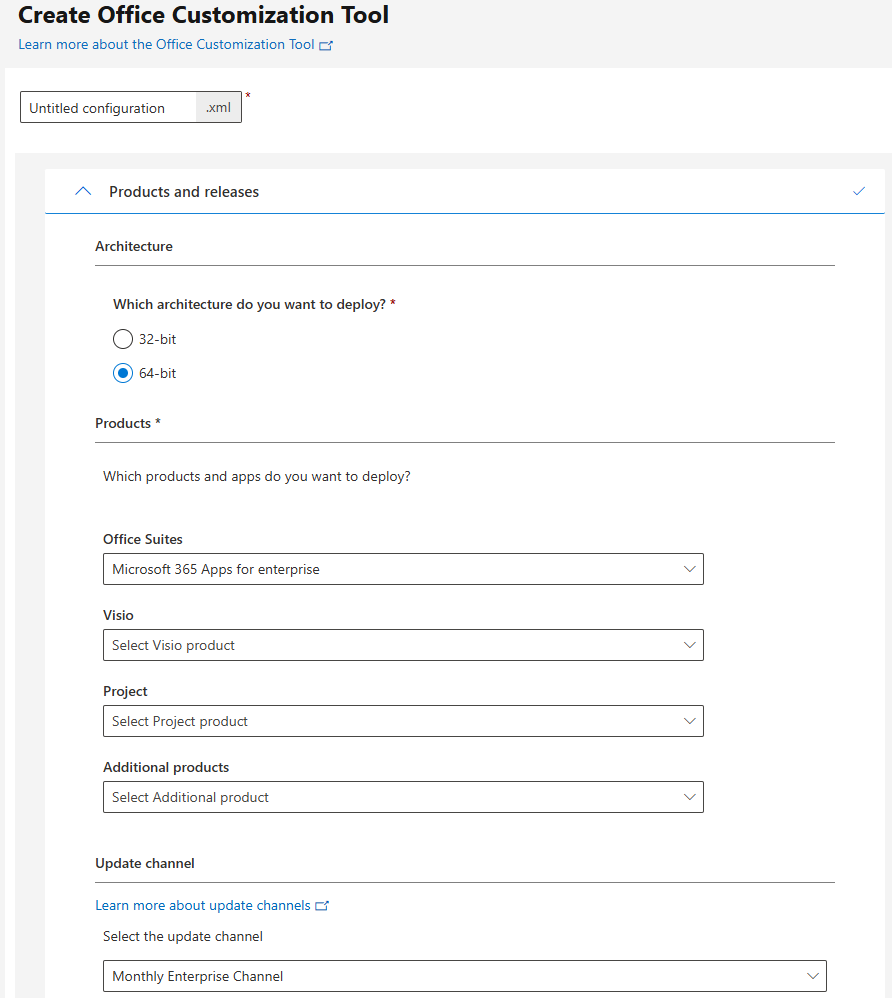
We can manually change the example XML file to your own needs, but we can also use the Deployment configurations tool available in the Microsoft 365 Apps admin center.
With this online tool we can create our own XML file using a GUI.
We can select which architecture we need, which Office suite to install, like Microsoft Apps for Enterprise or Business, and we can select the Update channel.
On the Installation tab we can select to shutdown running applications, if we want to enforce closing running applications.
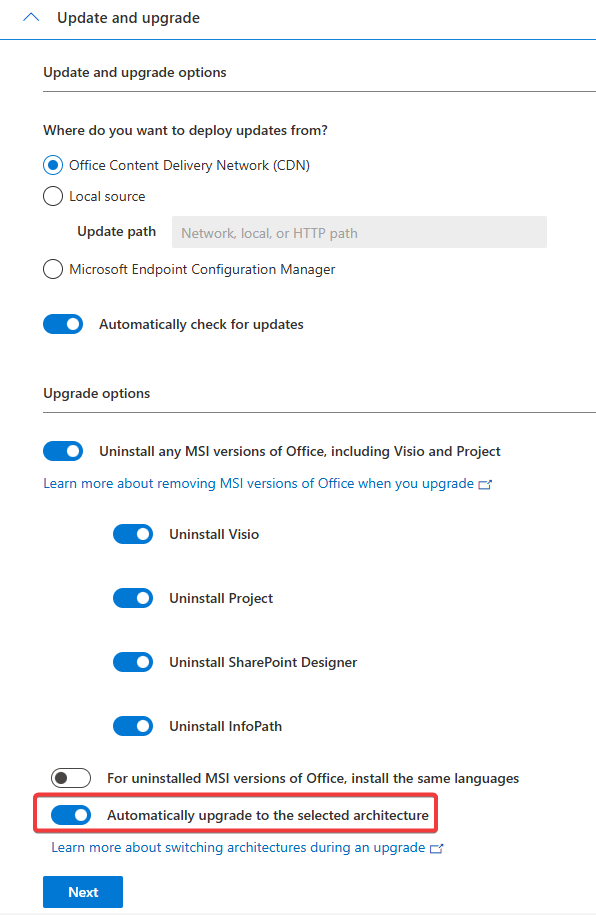
On the Update and upgrade options tab it is important to switch on the setting Automatically upgrade to selected architecture. This settings adds MigrateArch = True to our XML file.
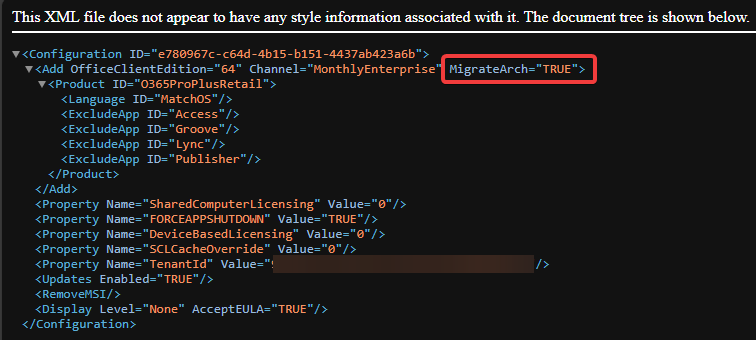
When we run through all tabs we can download the newly created XML file.
When we open the XML file we see MigrateArch is set to True.
We need to create a PowerShell script that starts the installation of Office by running setup.exe with the config XML file.
An example of such a script can be found on my GitHub.
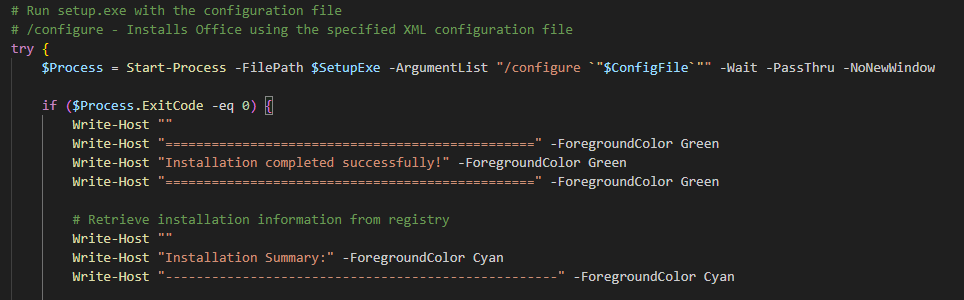
The script creates a log file under ProgramData\Microsoft\IntuneManagementExtension\Logs for troubleshooting.
The repo also contains an uninstallation and detection script.
Use the Microsoft Win32 Content Prep Tool to wrap the files to the intunewin file we can deploy with Microsoft Intune.
We can wrap all files to the package, but it’s not needed anymore to include the install and uninstall script, since we have the PowerShell script installer feature available.
When using that new feature, it is no longer needed to include the PowerShell scripts in the intunewin file.

Create and deploy the WIN32 package
With the described approach we temporarily create two WIN32 applications in Intune, but there is no need to wrap our files into two different packages.
Create a WIN32 application in Intune and upload the intunewin file.
Depending on what you like to use you can add a command line to execute the PowerShell script, or use the PowerShell script feature like I do.

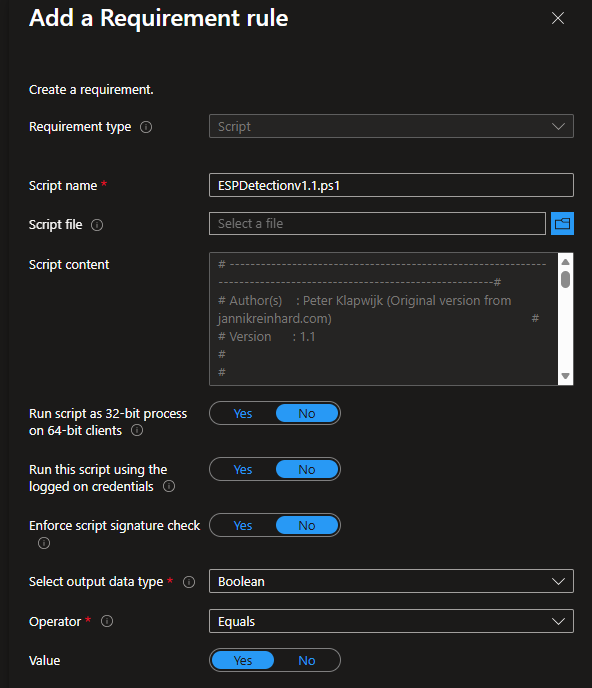
For the package that we’re going to temporary use for our new devices, we add an additional requirements rule.
Upload the ESP Detection script.
Select Boolean as output data type.
Select Equals as Operator.
Set Value to True.
This makes sure that this application can only be installed during Autopilot enrollment.
This additional rule is NOT needed for the package we are going to assign to our user as available app.
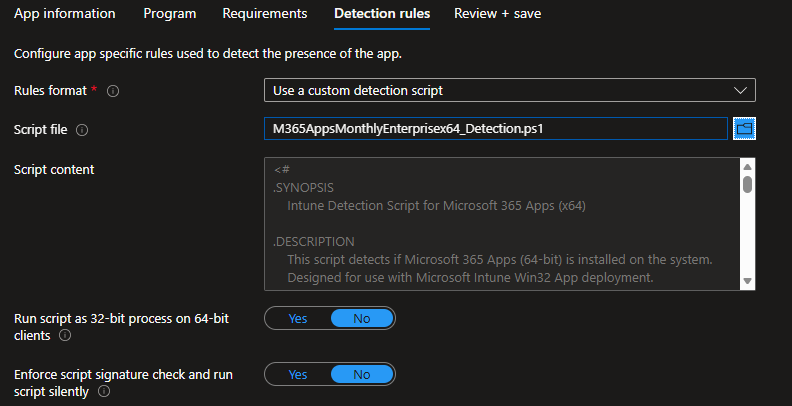
You can use your own detection rule, or upload the example script from my gitHub repo.
The end-result
Let’s have a look at the end-result.
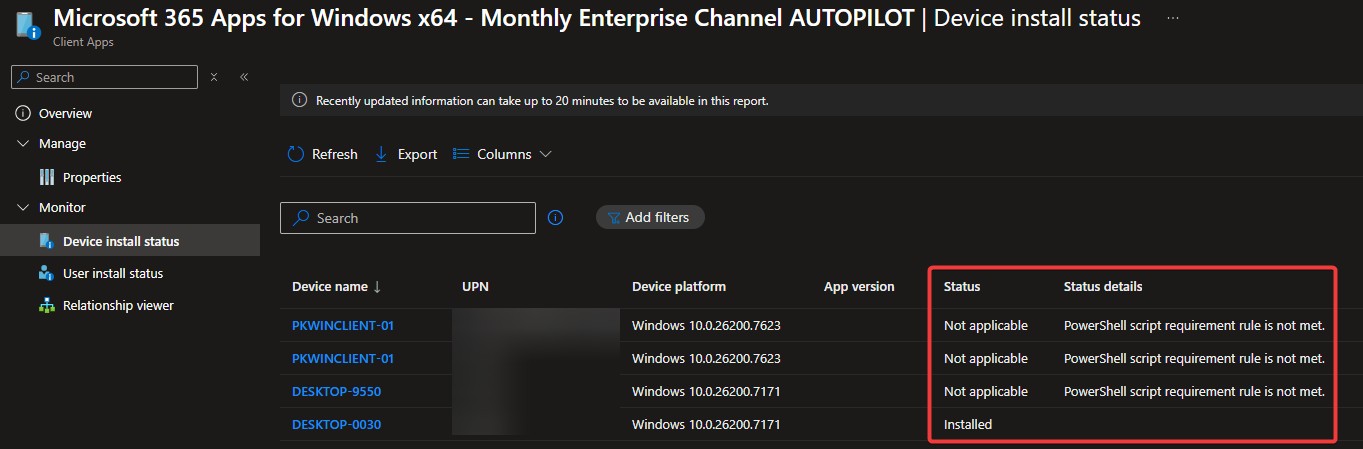
DESKTOP-9550 is an existing device on which the 32-bits version of Office is installed.

The Autopilot version of Office 64-bits to install on new devices is assigned as required to a group that contains all my Windows devices, new and existing.
The application is not applicable on my existing DESKTOP-9550.
But is is installed on a newly enrolled device, DESKTOP-0030.
The existing devices show not applicable because the PowerShell script requirement rule is not met.
The second Office 64-bits app is available to install.
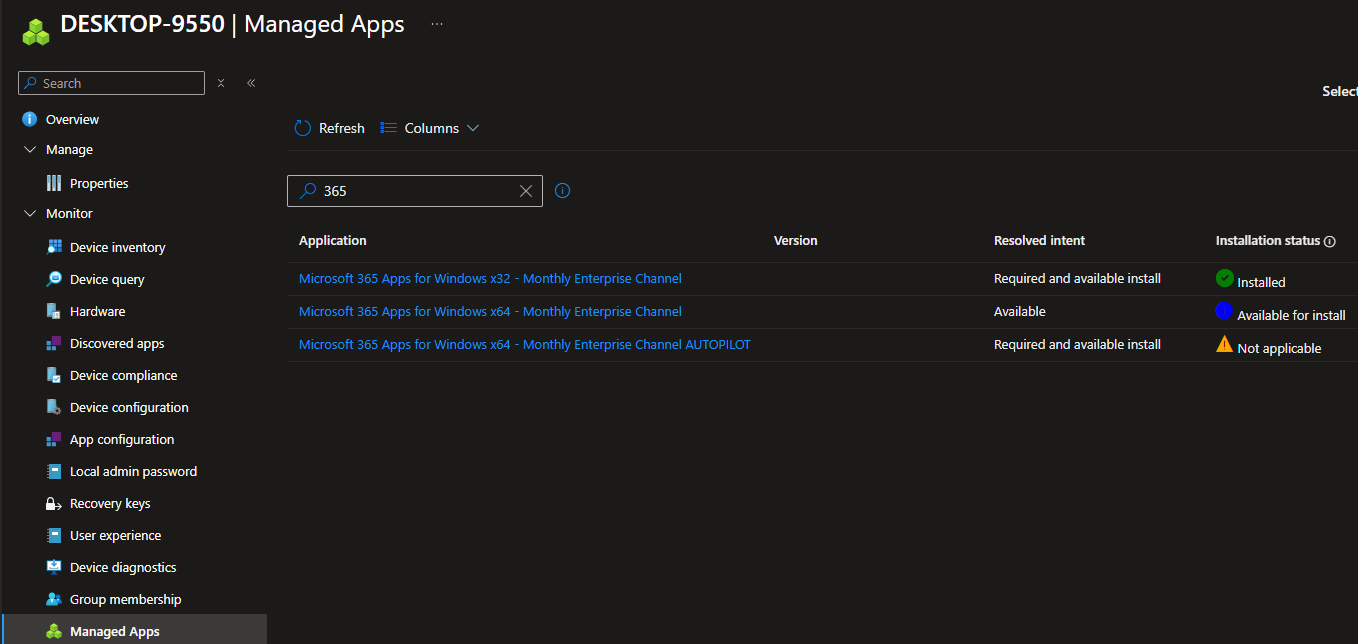
The available Office 64-bits can be installed as replacement for the 32-bits version.
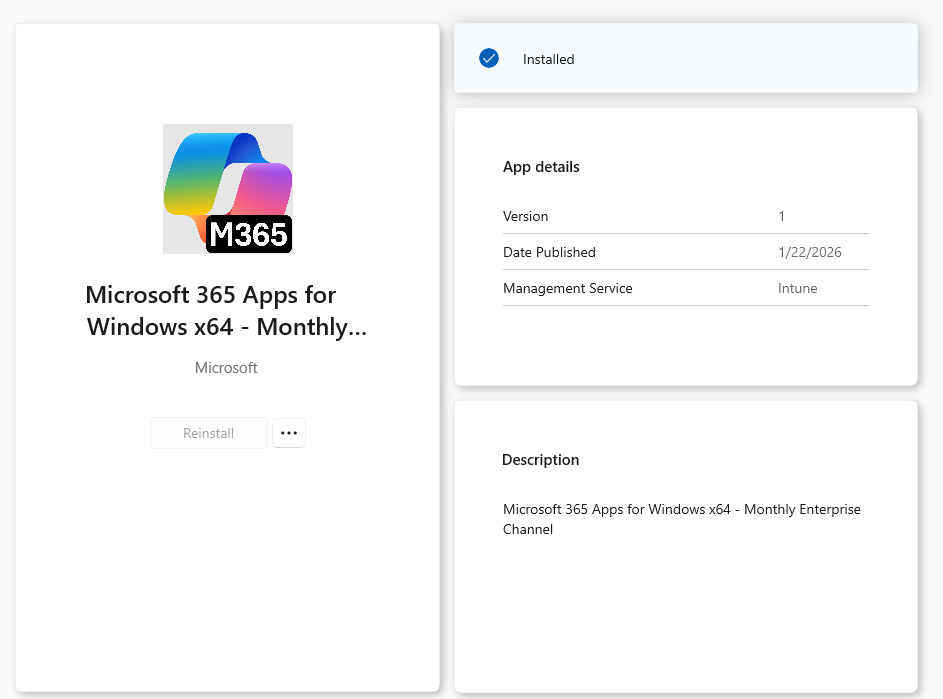
We need to keep in mind that the existing Office applications need to be closed as the 32-bits version is installed after which the 64-bits version is installed.
On my devices it took about 5 minutes to install the new version, but that is depended on how fast the package is downloaded on the device.
To wrap things up:
In the approach we temporary have two WIN32 applications in Intune to migrate from 32 to 64-bits Office.
One version for our new devices, with the additional requirement rule, assigned as required to the group to which the 32-bits version was assigned.
The second version first only assigned as available to allow users to migrate at a time of their choice, but with a communicated deadline.
When the deadline is reached, the second version (without the additional requirement rule) can be assigned as required to the group that holds all our applicable devices (new and existing).
The Autopilot version of the application can be cleaned up.
I hope this post is something that helps you if you’re in the need to migrating Office 32-bits to 64-bits.
Thanks for reading!
